Searching
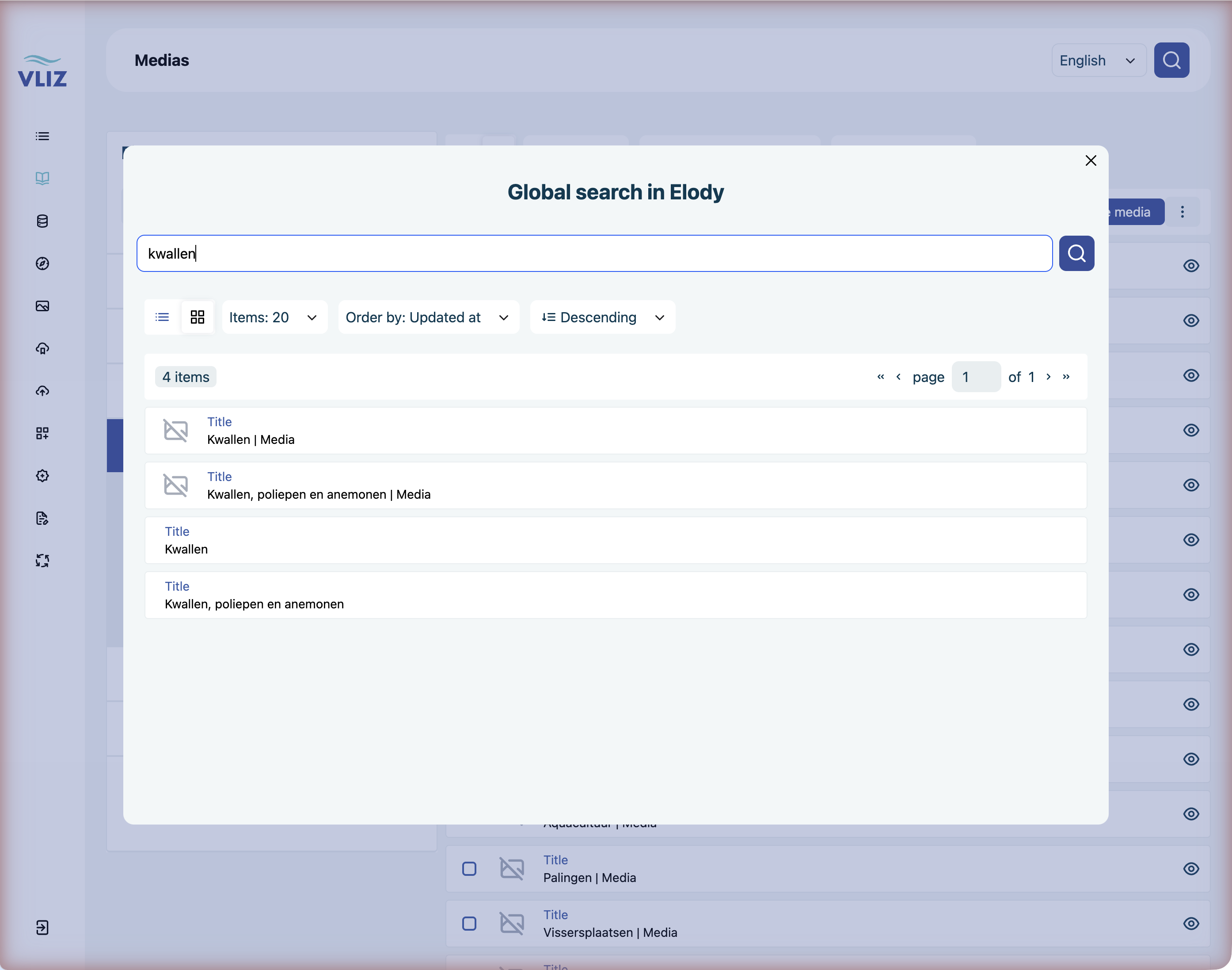
The fastest way to find anything in the DAMS is the magnifier button in the top-right corner. It opens a Global search in Elody dialog that searches across all entity types you have access to.
Quick search (global search dialog)
- Click the magnifier at the top right of any page.
- Type your term in the Type to search… field.
- Press
Enter(or click the magnifier next to the field) — results only appear once you submit; typing alone does not search. - The results are listed inside the dialog, with the entity type appended to the title (e.g.
Kwallen | Media). Entries without a suffix are albums. - Click a result to open its detail page.
What gets searched
Quick search hits the most common fields: title, description, and titles of linked Keywords, Marine regions and Partners. It does not look inside file contents (binary file text isn't indexed). For that, see Searching inside files below.
Sorting and paging the results
The dialog has the same list controls as a regular list view: a list/grid toggle, Items per page, Order by and the sort direction, plus paging. There are no per-type tabs — all matching types are mixed in one list.
Searching inside a specific entity type
If you already know what you're after — say a Media record — open that list from the left sidebar first (Items → Media, Lists → Albums, …) and narrow it down with the filter panel. The Title filter with contains text is the equivalent of a scoped free-text search.
Searching inside files
The DAMS does not full-text-index binary file contents (PDFs, Word, etc.) by default. To find a media by its content:
- Use Description or Keyword values that you've added to the entity.
- For documents that have been processed by OCR, OCR text is searchable through the description / keyword pipeline that the OCR service writes back.
Tips
- Title is king. The search ranks title hits higher than description or keyword hits, so keep titles meaningful.
- Wildcards aren't needed. Partial matches work automatically (
koksijfindsKoksijde 2014). - Quote phrases. Wrapping a multi-word phrase in double quotes (
"coastal management") requires the words to appear next to each other. - Case is ignored.
KOKSIJDEandkoksijdegive the same results. - Combine with filters. A free-text search inside a filtered list is the most powerful combination — type your search after applying filters and the results stay narrow.
Saved searches
If you find yourself running the same query repeatedly, save it:
- Open a list view and apply your filters.
- Use the ⋮ menu next to Apply filter(s) in the Filters panel — that's where saving and re-applying a saved search lives, not the global search dialog.
- Give it a name (e.g. Marine debris 2024).
Availability
Saved searches are a per-client feature (features.savedSearch) and are additionally permission-gated, so the menu entry is only there if your account is allowed to use it. If you don't see it, ask whether it's enabled for your role.
Screenshot to add
The ⋮ menu in the Filters panel with the saved-search entries visible.
What to do when you can't find something
| Symptom | Likely cause | Fix |
|---|---|---|
| You know the entity exists but it doesn't show up | You're filtered down to the wrong context | Clear the Context filter or switch to all contexts |
| Search returns "no results" for an obvious title | A typo in the indexed title, or the entity was created very recently and hasn't been indexed yet | Wait ~30 seconds and retry; or open the entity by ID directly |
| Too many irrelevant results | Use the type tabs to restrict, or add a filter on Keyword / Marine region | See Filtering |