Uploading media
All uploads through the UI are driven by a CSV file that describes the entities you're creating — even when you upload just one file. The CSV template (downloadable from the upload form) makes this quick for small uploads, and it's what makes the same flow scale to hundreds of files.
This page covers the three upload scenarios:
- Uploading media with files — one or more new media records, each with one or more files attached.
- Uploading entities without files — creating media/map/document records that get their files later.
- Adding a file to an existing media — attaching another mediafile (e.g. a high-res TIFF or an alternate format) to a media that already exists.
For large or recurring imports — especially when files arrive structured per-album on a shared drive — use the shared-drive bulk import instead.
Before you start
Make sure these target entities already exist, otherwise you'll have to leave cells blank and come back later:
- The context you'll file the records under (required on every media/map/document)
- The album you want to file the media under
- The partners, persons and events you want to link
- The keywords you want to apply
- The archival collection / collection part, if relevant
If they don't exist yet, create them from the corresponding section in the left sidebar before starting the upload.
Scenario 1 — Upload media with files
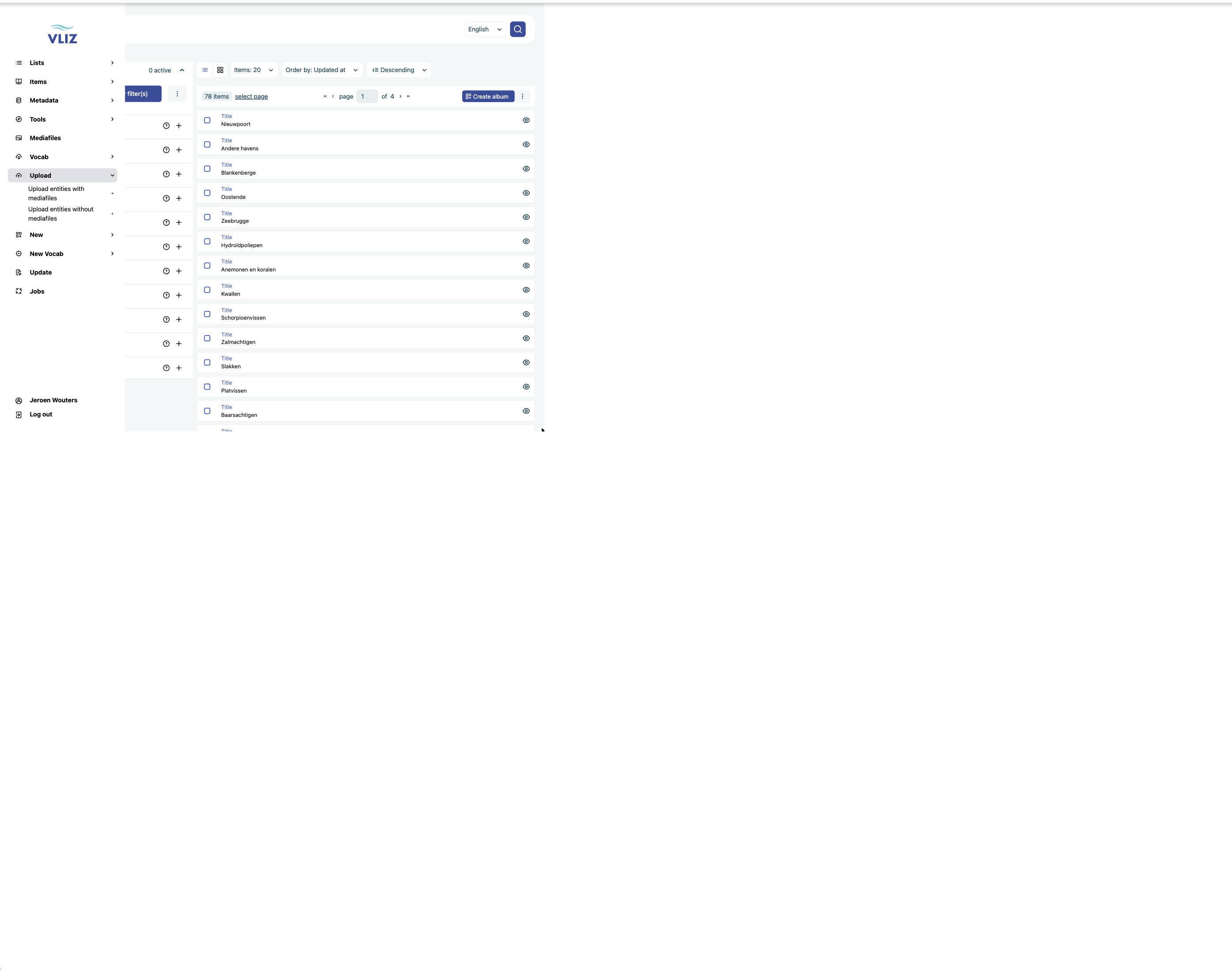
- Sidebar → Upload → Upload entities with mediafiles.
- The form has two drop zones: a small one for the CSV (required, exactly one file) and a large one for the media files themselves.
- Under the CSV zone, use Download example with instructions for and pick the template matching what you're uploading:
media,mapordocument(each in a with mediafiles variant here). - Open the template in your spreadsheet tool and fill it in:
- One row per file; rows sharing the same
same_entityvalue become one media entity with multiple files. titleandcontextare required on each entity (put them on the entity's first row). Thecontextcontrols who can see the resulting records — for general VLIZ data this isgeneral vliz.filenamemust exactly match the name of a file you'll drop in the file zone, including extension.- Replace or clear the placeholder text the template ships with (e.g.
title of a keyword for media).
- One row per file; rows sharing the same
- Drop the filled-in CSV in the CSV zone, and the media files in the file zone. Multi-select is fine; ZIP archives are not accepted — drop the files themselves (JPEG, PNG, TIFF, MP4, MP3, PDF, XML, GIF; up to 999 files).
- Click Upload. The progress indicator walks through Validate → Prepare → Upload:
- Validate runs a dry-run of the CSV first. If a row is invalid (missing required column, referenced entity not found, filename mismatch), the errors are listed per line number and nothing is imported. Fix the CSV and drop it in again.
- After validation passes, files are uploaded and the entities created.
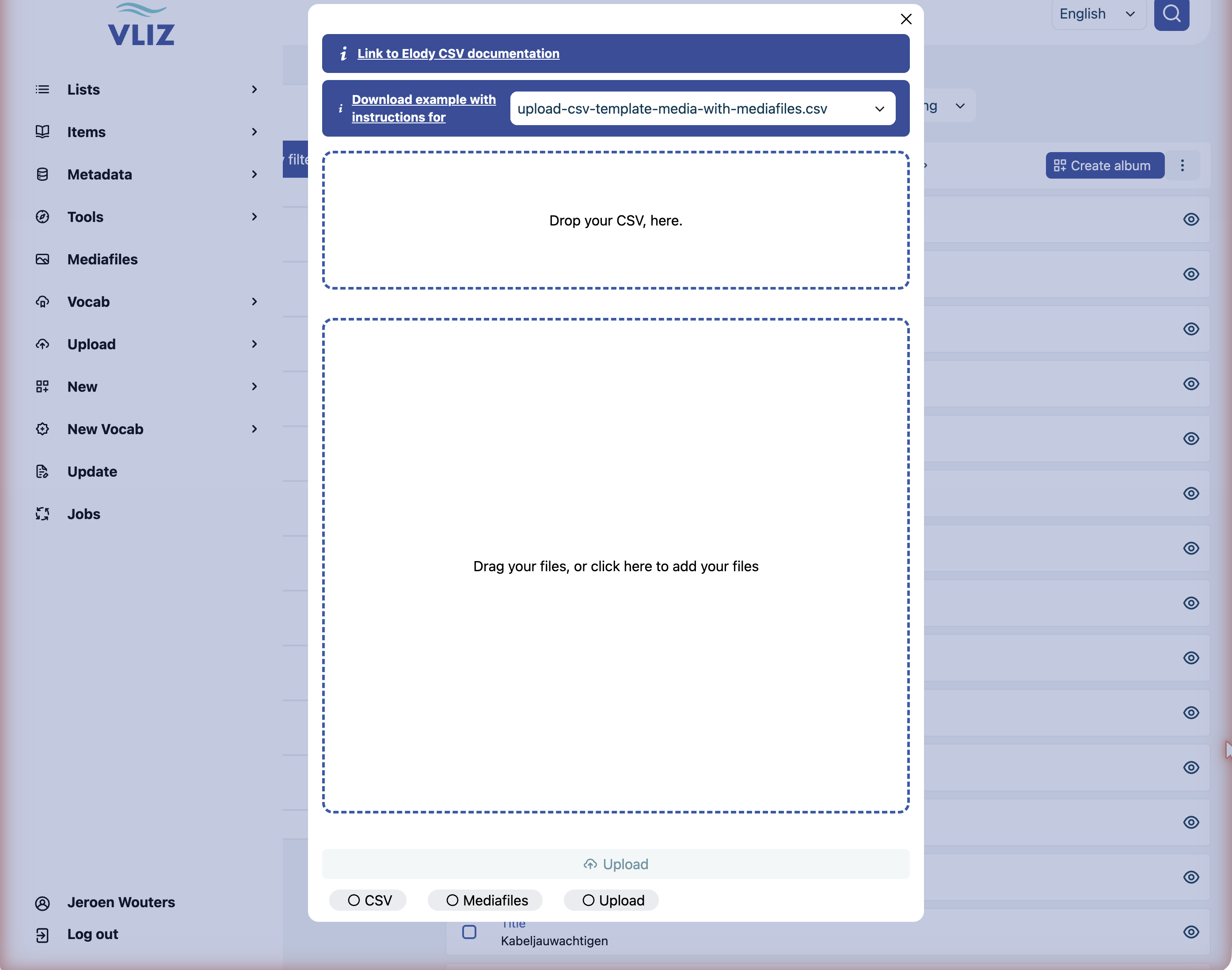
The three pills under the Upload button (CSV, Mediafiles, Upload) are the progress steps — they light up as the import moves through them.
The system creates one entity per same_entity group, plus one Mediafile per filename, all linked together.
Scenario 2 — Upload entities without files
Use Sidebar → Upload → Upload entities without mediafiles to create records that don't have (or don't yet have) files: the flow is identical, but there is only the CSV drop zone, and the templates are the without mediafiles variants. Attach files later via scenario 3.
Scenario 3 — Add a file to an existing media
When the media itself already exists and you only want to attach an extra file (an alternate format, a translated subtitle, a derivative), no CSV is needed:
- Open the media's detail page (search for it, or navigate to it from the album).
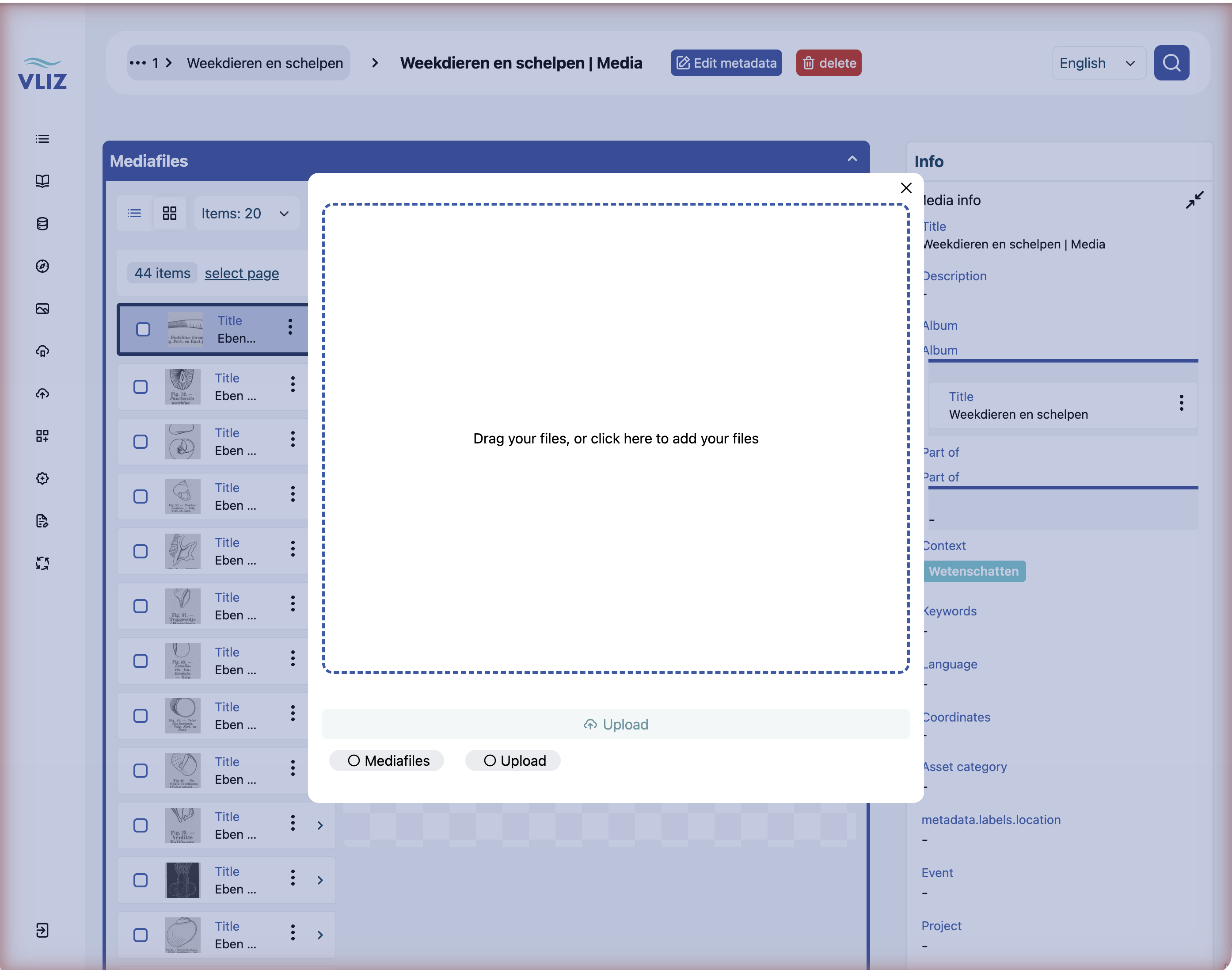
- Find the Mediafiles panel — it lists the files already attached to this media.
- Click Add new mediafiles at the top right of that panel. An upload window opens with a single drop zone — no CSV this time.
- Drop the file(s) and click Upload.
- The file is uploaded, processed and listed in the panel. Set confidentiality, licence, etc. on the new mediafile afterwards via Editing metadata.
What happens after Upload
Behind the scenes the system:
- Sends the binaries to the Storage API → S3.
- Generates derivatives (thumbnails, IIIF tiles, possibly transcodes).
- Creates the metadata record(s) in MongoDB.
- Indexes them so they're searchable.
- If file scanning is configured, runs an antivirus / metadata-extraction pass.
Every import also creates a job — check the Jobs page in the sidebar to see the import status and any failure messages after the fact.
You'll see new files appear with a processing indicator that disappears once derivatives are ready. Refresh the page if it stays visible too long.
Editing immediately after upload
If you spotted a typo right after uploading, you don't need to do anything special — just open the entity and use Editing metadata to fix it.
Common gotchas
| Symptom | Likely cause | Fix |
|---|---|---|
| Validation step fails | Required column missing (title, context) or a referenced entity doesn't exist | Read the per-line error messages, fix the CSV, drop it in again |
| A metadata column seems ignored | Column header not recognised — unknown columns are silently skipped | Check the column reference; some template columns are known not to be picked up |
| File listed in CSV but not linked | filename doesn't exactly match the uploaded file (case, extension) | Make the CSV filename cell match the real filename exactly |
| Upload stalls at "Processing" for minutes | Large file or transcoding queue backlog | Wait — large videos can take 5–15 min for IIIF/transcoding. Refresh after a while |
| File saved but no thumbnail | Derivatives still being generated, or file format not previewable | Wait a minute and refresh; if still no thumbnail check the file format is supported |
| Wrong context picked | Records saved with a restrictive context aren't visible to colleagues | Open the entity → change the context → Save |
File-format expectations
The upload form accepts: JPEG, PNG, TIFF/TIF, GIF, MP4, MP3, PDF, XML (up to 999 files per upload). ZIP archives are not accepted — drop the individual files.
If you need to upload something exotic, ask whether the accepted-format list and the IIIF / transcode pipelines need to be extended.